
TV Cast Pro for LG webOS
2kit consultingVideo Players & Editors
4.2410.00 Reviews
- Version
- 2.60
- Installs
- 100.00K
- Age Rating
- Everyone
Screenshots
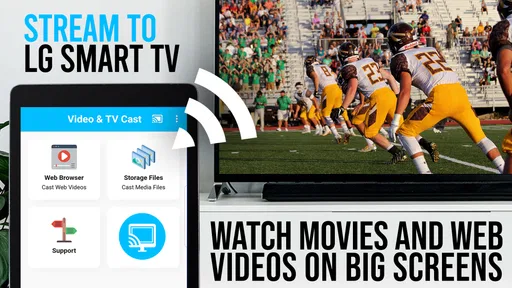
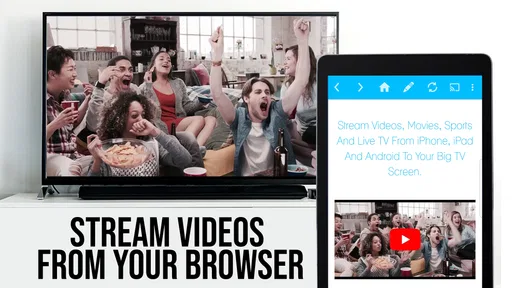
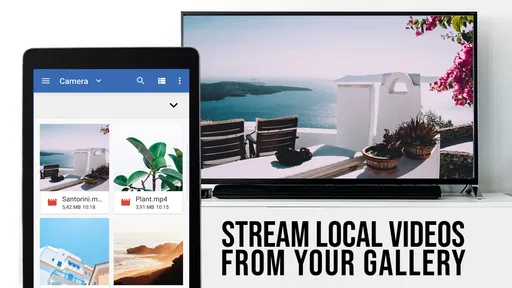
Our Review of TV Cast Pro for LG webOS
 Analysis by Appyee
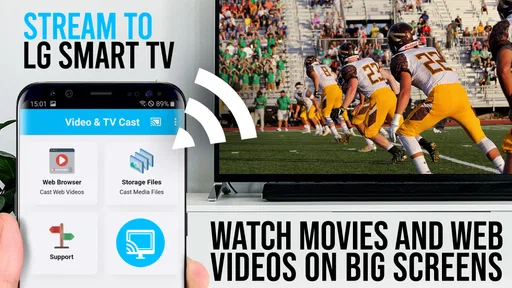
So, you've got a shiny LG TV and you're itching to cast some content from your phone without the hassle of cables? Enter TV Cast Pro for LG webOS. I recently gave this app a whirl, and let me tell you, it’s like having a magic wand that tosses your favorite videos right onto your big screen. Let’s dive into what makes this app tick and why it might just become your new favorite streaming buddy.
Setting Up Your Streaming Experience
First things first, getting started with TV Cast Pro for LG webOS is a breeze. You’ll need to download the app from the Play Store or App Store, depending on your device. Once installed, make sure your phone and TV are connected to the same Wi-Fi network. This is crucial because, without that shared connection, your casting dreams might just fizzle out like a dud firework.
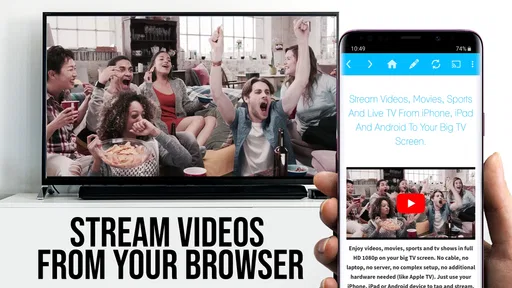
The interface is pretty straightforward, which I appreciate. Nobody wants to wrestle with complicated menus when all you want is to watch cat videos on a bigger screen. Just hit the connect button, and you’re in business. The app even provides a handy browser that lets you surf the web for videos to cast. Pretty neat, right?
Features That Stand Out
One of the standout features of TV Cast Pro is its ability to support various video formats. Whether you’re browsing YouTube, Vimeo, or even some obscure video site, the app handles it like a pro. It’s like having a universal remote for video formats. I tested it with multiple sites, and it worked seamlessly, pulling content from the web and flicking it onto my LG TV like a boss.
Another cool feature is the bookmark function. You can bookmark your favorite videos or websites for quick access later. This is a lifesaver for those moments when you stumble upon an epic video but don’t have the time to watch it right away. Just bookmark it, and you’re all set for a popcorn-filled binge session later.
The User Experience
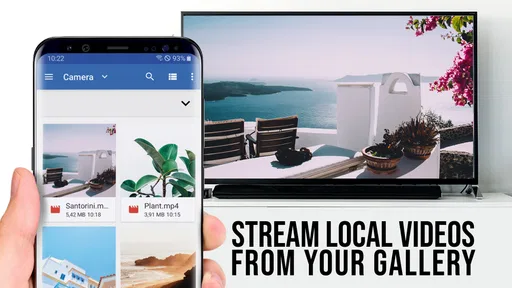
Using TV Cast Pro feels like stepping into the future of streaming. The app doesn’t just support video casting; it also allows you to stream photos and music. Imagine hosting a party and having a slideshow of your best vacation pics or a playlist of your favorite tunes playing seamlessly on your TV. It’s like turning your living room into a personal art gallery or concert hall.
While the app is generally smooth, I did notice that the connection can sometimes be a little finicky. Occasionally, I had to reconnect my phone and TV if the streaming faltered. But hey, no app is perfect, right? Just a minor hiccup in an otherwise smooth user experience.
Final Thoughts
In the grand scheme of streaming apps, TV Cast Pro for LG webOS is a solid contender. It’s user-friendly, versatile, and brings a whole new level of convenience to your viewing experience. Whether you’re a tech newbie or a seasoned pro, this app makes casting a joy rather than a chore.
If you’re looking for an app that bridges the gap between your mobile content and your LG TV, give TV Cast Pro a shot. It’s like having a personal assistant that makes sure your favorite content is always just a tap away. So, grab the app, pop some popcorn, and get ready to enjoy your shows and videos like never before. Happy streaming!
Verdict
Strengths of TV Cast Pro for LG webOS
- User-friendly interface for easy navigation.
- Supports multiple video formats seamlessly.
- Allows casting from various web sources.
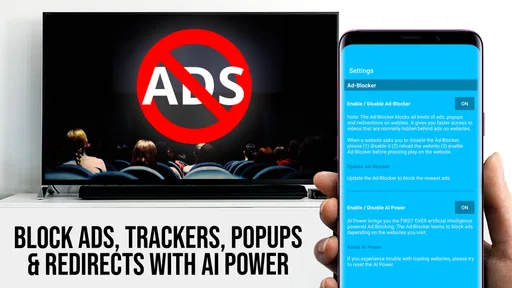
- No ads for uninterrupted viewing experience.
- High-quality video streaming options.
Limitations of TV Cast Pro for LG webOS
- Limited compatibility with non-LG devices.
- Firewall settings may block casting.
- Free alternatives available with ads.
- Requires stable internet for smooth play.
- No offline viewing or download option.
Other Releases by 2kit consulting
View All
TV Cast Pro for Fire TV
Video Players & Editors4.1

TV Cast | Ultimate Edition
Video Players & Editors4.0

Screen Mirroring + for Fire TV
Tools4.4

Screen Mirroring Pro for Roku
Tools4.5
Similar Picks in This Category
View All
Google TV
Google LLC3.9

iTunes
Apple4.7

YouTube
Google LLC3.8

MX Player
Amazon Mobile LLC4.2

CapCut - Video Editor
Bytedance Pte. Ltd.3.5

PLAYit-All in One Video Player
PLAYIT TECHNOLOGY PTE. LTD.4.5
Frequently Asked Questions
What is TV Cast Pro for LG webOS and how does it work?
TV Cast Pro is an app that allows you to stream videos, photos, and music from your smartphone or tablet directly to your LG webOS TV. It works by connecting your device and TV to the same Wi-Fi network, enabling seamless casting through the app. This provides a convenient way to enjoy your media on a larger screen.
Do I need any additional hardware to use TV Cast Pro on my LG webOS TV?
No additional hardware is needed to use TV Cast Pro. As long as your LG TV has webOS and both your TV and mobile device are connected to the same Wi-Fi network, you can stream content directly. This makes the setup quick and easy, without the need for cables or external devices.
Is there a difference between the free version and the Pro version of the app?
Yes, the Pro version of TV Cast offers additional features not available in the free version, such as an ad-free experience, bookmarks, and custom settings. These enhancements provide more flexibility and convenience, making the Pro version ideal for users who frequently cast content to their LG webOS TVs.
Can I cast any type of video content using TV Cast Pro?
TV Cast Pro supports a wide range of video formats, but it might not support all online videos, such as those with DRM protection or from unsupported websites. It’s best to check compatibility with your usual content sources. However, most popular video formats and streaming sites are generally supported.
What should I do if I encounter issues with the app?
If you experience issues with TV Cast Pro, ensure that both your device and LG webOS TV are on the same Wi-Fi network. Restarting the app and your devices can often resolve connectivity problems. For persistent issues, checking the app’s support page or contacting customer support might provide additional solutions or updates.
